

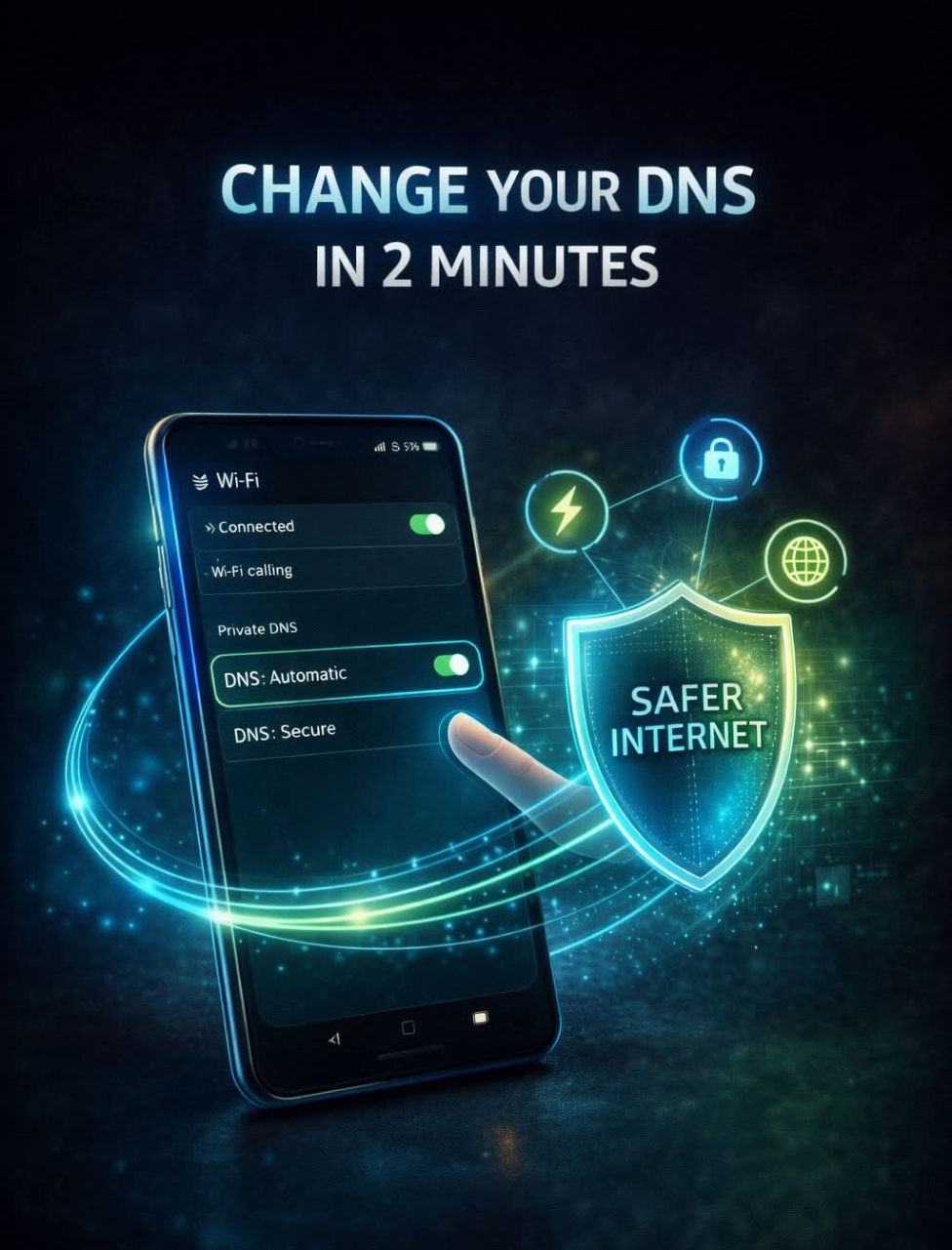
A Quick Guide to Change DNS on Your Phone?
Changing your DNS can:
✔️ Improve speed
✔️ Increase privacy
✔️ Block malicious websites
✔️ Make browsing more reliable
No tech skills needed.
🤖 ANDROID (2–3 minutes)
Method 1: Private DNS (Recommended)
1️⃣ Open Settings
2️⃣ Tap Network & Internet
3️⃣ Tap Private DNS
4️⃣ Select Private DNS provider hostname
5️⃣ Enter one of these:
dns.google (Google DNS)
1dot1dot1dot1.cloudflare-dns.com (Cloudflare)
6️⃣ Tap Save
✅ Done. Works on all Wi-Fi & mobile data.
🍎 iPhone (iOS)
Change DNS on Wi-Fi
1️⃣ Open Settings
2️⃣ Tap Wi-Fi
3️⃣ Tap the ⓘ next to your connected network
4️⃣ Tap Configure DNS
5️⃣ Select Manual
6️⃣ Delete existing DNS
7️⃣ Add:
● 1.1.1.1
● 1.0.0.1
(Cloudflare – fast & private)
8️⃣ Tap Save
⚠️ This applies only to that Wi-Fi network.
🔐 Best Free DNS Options (Safe Picks)
• Cloudflare: 1.1.1.1 / 1.0.0.1
• Google DNS: 8.8.8.8 / 8.8.4.4
• Quad9 (Security-focused): 9.9.9.9
⚠️ Important Notes
❌ DNS does NOT hide you completely
❌ DNS is NOT a VPN
✅ DNS helps block bad domains
✅ DNS improves trust & speed
Changing DNS won’t make you invisible —
but it makes you smarter online.

 522.137 SRY